
Leave a Trail with Feedback
Make a pulsing ring leave fading copies behind it. Start with the supplied
animation, then add one FEEDBACK module.

1. Open the starting patch
Section titled “1. Open the starting patch”Download the animated ring and open it with
File > Open....
The ring grows and shrinks around its center. This starting patch contains
one SHAPE with an LFO moving its Size. It needs no audio input or
media files.

2. Add feedback
Section titled “2. Add feedback”Click + in Chain and choose FEEDBACK. Keep SHAPE before
FEEDBACK in the chain so the ring feeds into the loop.
Select FEEDBACK to open its controls in Module.
3. Set the trail
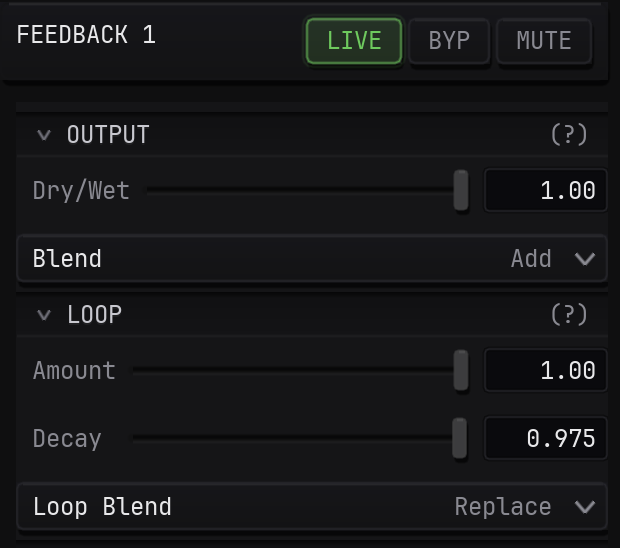
Section titled “3. Set the trail”Enter these values:
| Section | Control | Value |
|---|---|---|
Output | Dry/Wet | 1 |
Loop | Amount | 1 |
Loop | Decay | 0.975 |
Loop | Loop Blend | Replace |
- Dry/Wet
- Decay
Loop Blend set to Replace paints the current ring over the loop.
The rest of the SHAPE frame is transparent, so earlier rings remain
there and fade according to Decay.
4. Compare the result
Section titled “4. Compare the result”Adjust Dry/Wet to blend the clean ring with its trail. Lower Decay
for a shorter trail.
5. Save your patch
Section titled “5. Save your patch”Choose File > Save As... and save it as Feedback trails.hxc.
You can compare it with the
finished patch.
To change the ring’s pulse speed, adjust LFO 1’s RATE using
Animate Your Pattern.
For other loop blends and delays, see FEEDBACK.
Compare feedback before and after CRT processing in the CRT and feedback example.